Prerequisites, setup and acceptance checks. Start on a test database.
Updated 30 September 2026 · Odoo 16–19
1. Prerequisites
Use Odoo 16–19 on Odoo.sh or a self-hosted server. Standard Odoo Online cannot install this Python add-on. Back up your database and filestore and prepare a staging copy. Check the dependencies listed in the module archive for your exact version.
2. Install the module
Download the matching version of PrintGo from Odoo Apps. On a self-hosted staging server, place printgo in the configured addons path, install its declared dependencies, restart Odoo and update the Apps list. On Odoo.sh, add it to a staging branch. Install the module before applying the product-specific steps below.
3. Prepare the workstation
Install the desktop agent on the computer connected to the printer. First verify an ordinary operating-system test print and network access to Odoo.
4. Pair and route
Create an agent in PrintGo and enter its time-limited code in the desktop application. Choose a default printer for the user or company.
5. Run a print test
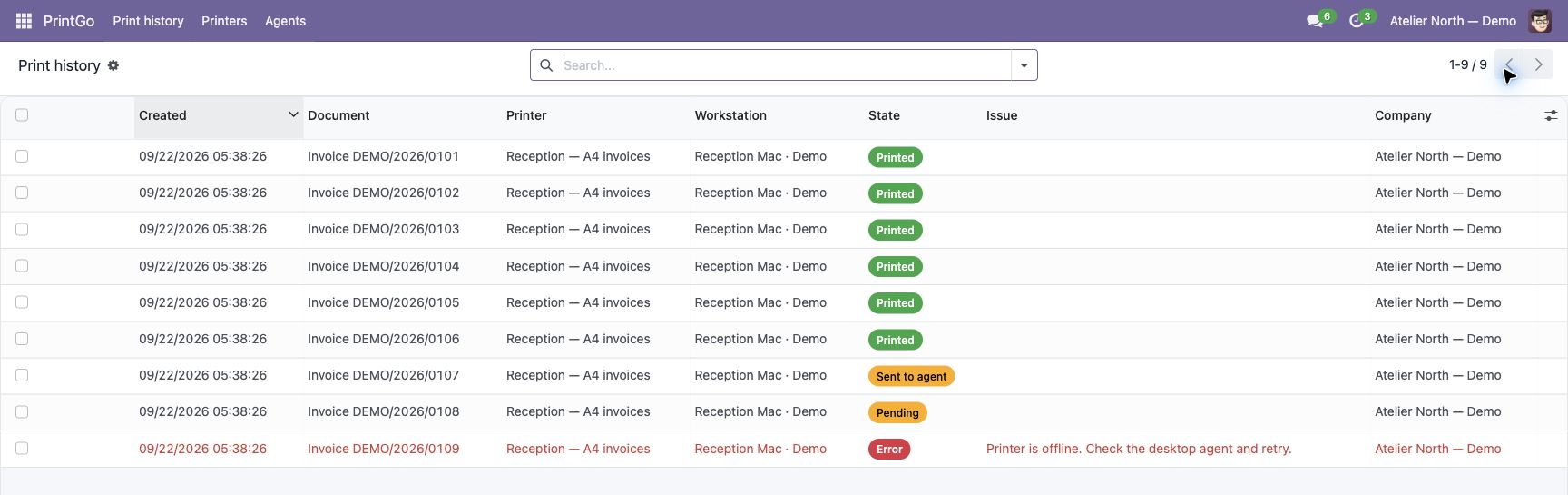
Send a test page, then an invoice, a delivery slip and a quotation. Check queue history and error handling. Validate the agent on your operating system before rollout.