Prerequisites, setup and acceptance checks. Start on a test database.
Updated 30 September 2026 · Odoo 16–19
1. Prerequisites
Use a test copy of Odoo 16–19 on Odoo.sh or a self-hosted server, with Sales, Inventory and Invoicing. Back up the database and filestore. Prepare the Shopify store domain, a payment journal, taxes, product SKUs and warehouse/location mapping. Standard Odoo Online cannot install this module.
2. Shopify authentication in 2026
Since 1 January 2026, new custom apps are created in the Dev Dashboard. Install the merchant-owned app in the appropriate organization and obtain the required API access. Client-credentials tokens expire after 24 hours. The current Odoo connector accepts a token but has no automatic token renewal: do not plan an unattended production installation without validating a renewal solution with Arcchester. Existing legacy apps may still supply an existing Admin API token. Never email us your token or client secret. See the official Shopify guide linked below.
3. Install and connect
Download the purchased archive for your exact Odoo major version. On a self-hosted test instance, place the shopify_sync directory in the configured addons path, restart Odoo, update the Apps list in developer mode and install Shopify Sync. On Odoo.sh, add the module to a staging branch of your project and install it there. Open Shopify → Configuration → Connect a store. Enter the myshopify.com domain, a valid Admin API token and the app secret used for webhook signature checks; test the connection.
4. Choose the flows
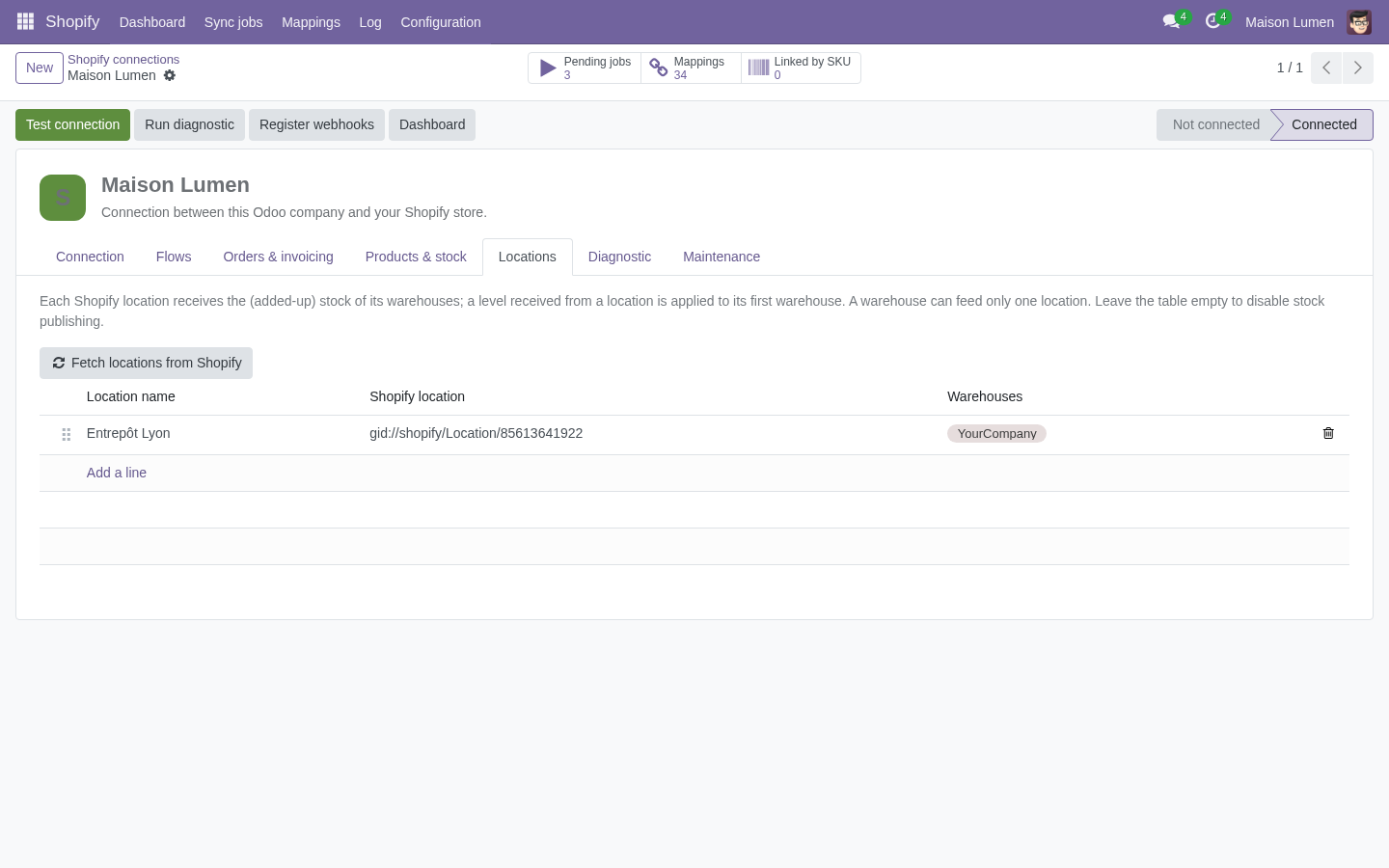
Configure the payment journal, taxes, order warehouse and source of truth for each flow. Fetch Shopify locations and map them to Odoo warehouses. Enable only the flows you intend to test. For products, choose import, export or existing-catalogue linking by SKU. Verify SKU uniqueness and variant matching before synchronizing the catalogue.
5. Webhooks and first test
The webhook endpoint must be publicly reachable over HTTPS. Register the supported webhooks from the connection and run the diagnostic. Check that scheduled actions run. Use test data: one paid order, its invoice and payment, one stock change, one delivery with tracking and the refund scenarios relevant to your business. Compare taxes, currency, totals and delivered quantities in both systems. The reconciliation job can recover missed events through outbound API calls; it is not a substitute for testing.
6. Troubleshooting and rollout
An authentication error requires a valid token and the right scopes; a newly issued 24-hour token will expire unless renewed. For jobs that stay pending, inspect scheduled actions. For stock differences, check the selected source, location mapping and reserved quantities. Fix the cause before retrying failed jobs. Promote to production only after your own acceptance checks, a backup and an agreed rollback plan. Send support your Odoo version, hosting and a redacted error message, never credentials.