Prerequisites, installation in custom/, configuration, first test and update. Start on a copy of your database.
Updated 9 October 2026 · Dolibarr 18 → 24 · PHP 7.4 – 8.3 · version 1.1.0
1. Prerequisites
Dolibarr 18 to 24 with the Suppliers module active, PHP 7.4 to 8.3 with cURL, DOM/libxml and OpenSSL, MariaDB or MySQL. The Dolibarr company must use EUR. Back up the database and the documents directory before installing or updating.
2. Install the module
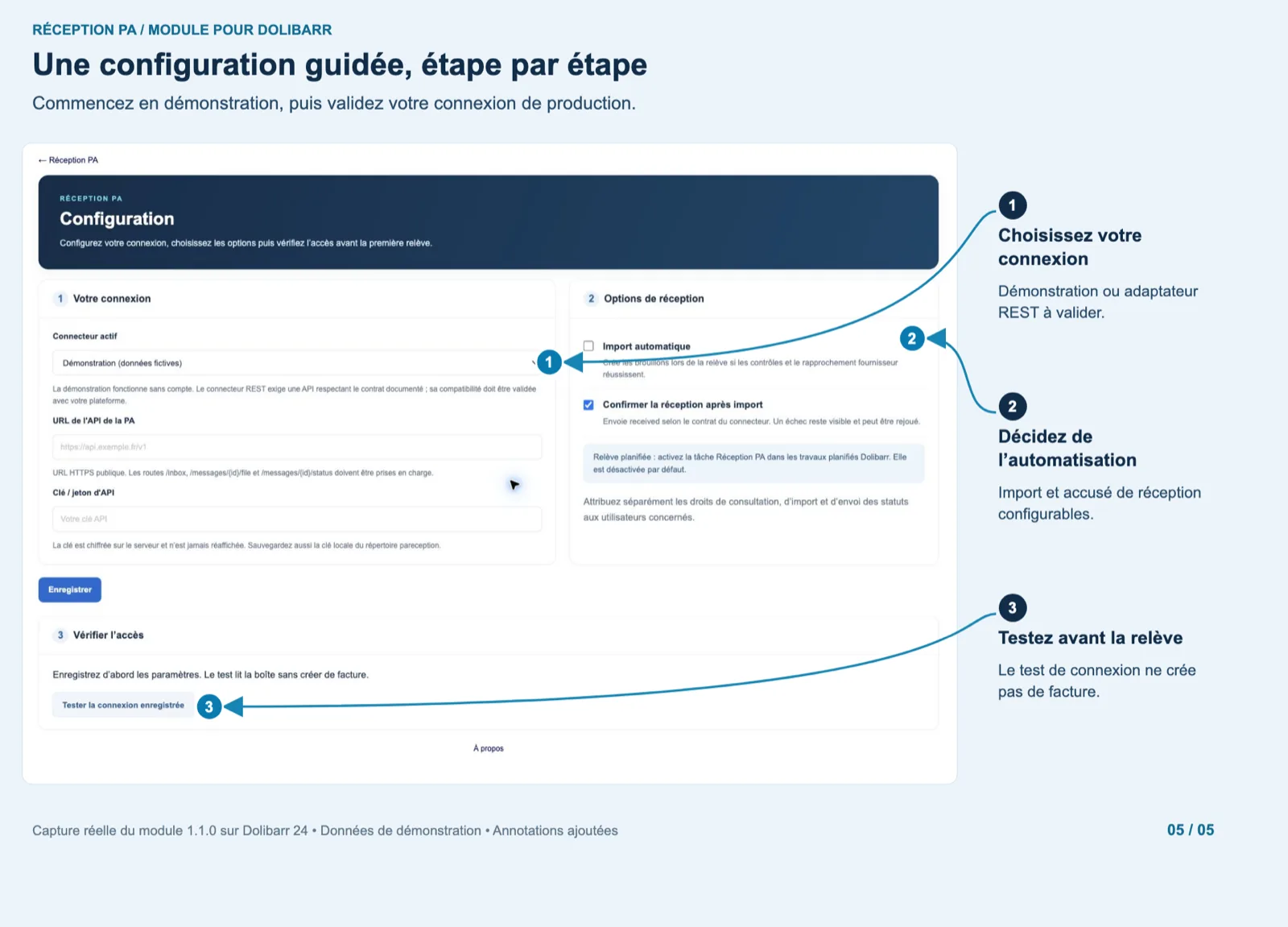
Download the archive from Dolistore and unzip it into custom/ (custom/pareception). In Home → Setup → Modules/Applications, activate PA Reception. Then, in Users & Groups, assign the three permissions (view, retrieve and import, send statuses) to the users concerned; the import permission is never granted by default.
3. Try the demo
In the module setup, keep the connector on Demo, save and click “Test saved connection”: it must report the number of messages available. Open PA Reception in the menu, click “Retrieve invoices”, then “View” on a message, check the lines and totals and click “Create supplier draft”. The supplier invoice opens as a draft with its lines.
4. Handle the flagged cases
The demo includes two cases to review: a supplier without SIRET, where you must select an existing supplier before importing, and a message whose data cannot be processed yet. Use “Check again” after fixing, or “Refuse” with a reason to send a refused status.
5. Connect your platform
Confirm with your platform that its API matches the documented contract (routes /inbox, /messages/{id}/file, /messages/{id}/pdf, /messages/{id}/status, bearer token, public HTTPS). Switch the connector to Generic REST, enter the API URL and key, save, then “Test saved connection”. Run a full test with real test invoices before enabling automatic import.
6. Automate the retrieval
Activate Dolibarr’s scheduled jobs module and its cron runner, choose an authorised user and enable the job “PA Reception: poll the inbox” (hourly). Tick “Automatic import” only once the checks pass on your real invoices; keep “Acknowledge after import” so that received is sent after each draft.
7. Update and troubleshoot
Replace custom/pareception with the new version, then disable and re-enable the module to apply the migration, permissions and scheduled job; messages are kept. Back up documents/pareception/.secret.key with your database. Connection errors are shown on the setup page; a failed import is rolled back and explained on the message.