Prerequisites, installation in custom/, configuration, first test and update. Start on a copy of your database.
Updated 9 October 2026 · Dolibarr 20 → 24 · PHP 7.4 – 8.3 · version 1.0.3
1. Prerequisites
Dolibarr 20 to 24 with PHP 7.4 to 8.3, the cURL extension and OpenSSL for token encryption. The Third parties and Invoices modules, plus Supplier invoices for purchases. A Pennylane workspace with API access (Essential plan or higher under Pennylane’s conditions) and administrator rights to create a V2 token. A scheduler that really runs Dolibarr scheduled jobs. Company in EUR. Work on a copy of your database first.
2. Install the module
Download the archive from Dolistore and unzip it into the custom/ directory of Dolibarr (custom/pennylanesync). In Home → Setup → Modules/Applications, activate Pennylane Sync. No Composer package or SDK is required.
3. Create and save the API token
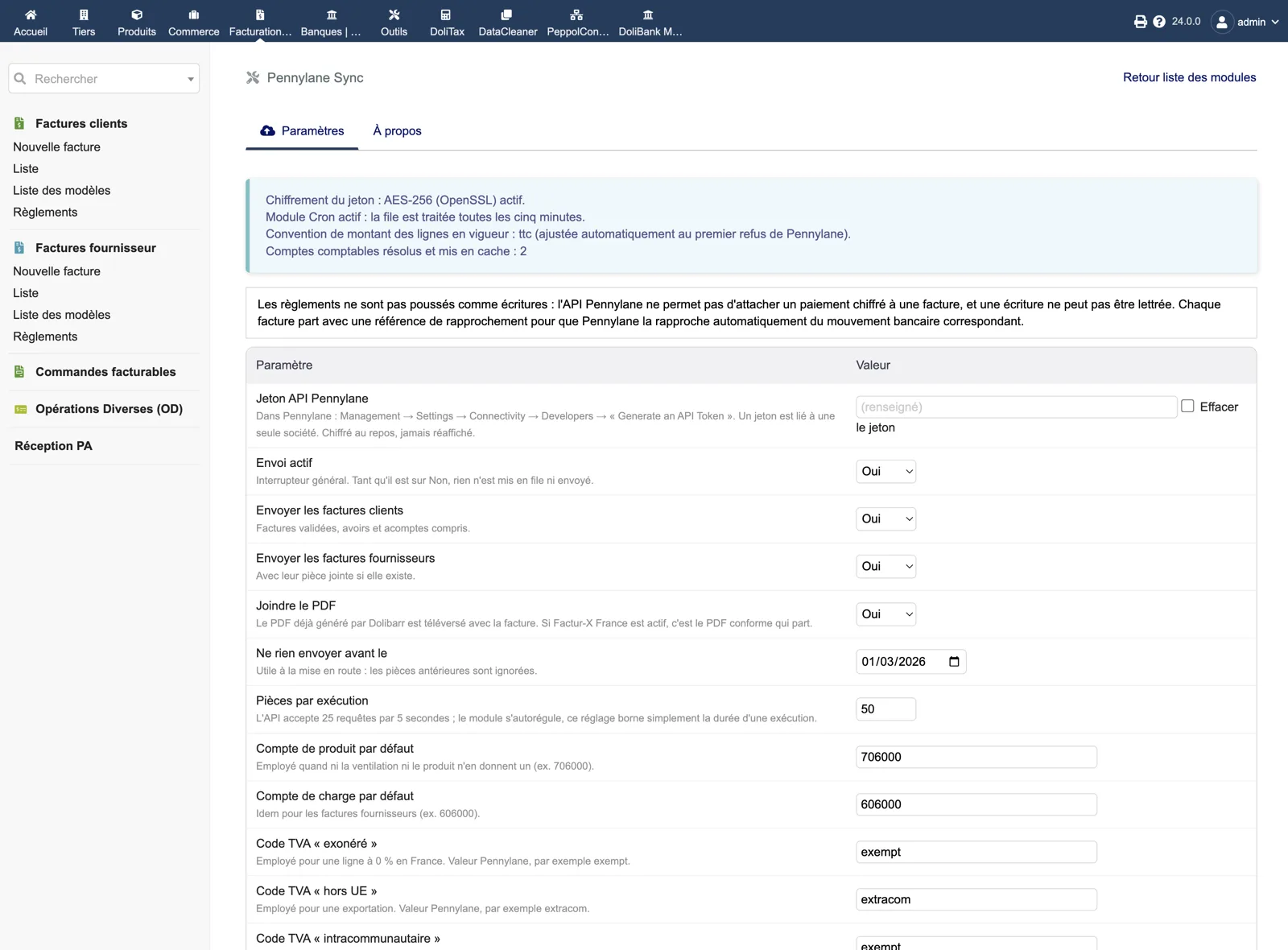
In Pennylane: Management → Settings → Connectivity → Developers → “Generate an API token”, with read and write rights on customers, suppliers, invoices and attachments, and read on the chart of accounts. One token is tied to one Pennylane company. Paste it in the module setup and save: the field stays empty afterwards and the token is stored encrypted.
4. Test the connection and choose the scope
Click “Test connection”: the name of the Pennylane company must be the one of this Dolibarr. Set “Send nothing before” to your go-live date, choose customer and/or supplier invoices, keep “Attach PDF” on, fill the default product and expense accounts (for example 706000 and 606000) and the VAT codes for exempt, extra-EU and intra-EU lines. Set “Sending enabled” to Yes.
5. Send a first invoice
Generate the PDF of a validated customer invoice (or validate one with its PDF). On the Pennylane Sync page, click “Send now”. The job must move to “Sent” with its Pennylane identifier, and the invoice card must show the banner “Sent to Pennylane on”. Open the document in Pennylane and check lines, VAT and PDF with your accountant.
6. Scheduled task and catch-up
In Home → Setup → Scheduled jobs, make sure “Pennylane Sync - Queue processing” is enabled and that your cron really runs it (the queue page shows the last automatic run). Only then use “Catch up” with a start date to queue past validated invoices.
7. Troubleshooting and update
A failed job shows the HTTP code and the API message: fix the cause in Dolibarr (missing billing address, missing PDF…) and click Replay; “Replay all failures” handles several at once. Before a closing, open the gap report and bring every month to zero. To update, replace custom/pennylanesync with the new version, then disable and re-enable the module.