Prerequisites, installation in custom/, configuration, first test and update. Start on a copy of your database.
Updated 9 October 2026 · Dolibarr 18 → 24 · PHP 7.4 – 8.3 · version 1.2.1
1. Prerequisites
Dolibarr 18 to 24 with PHP 7.4 to 8.3 and the cURL extension; the Invoices module enabled (Proposals and Orders as needed). A Meta Business account with an app and a phone number connected to the WhatsApp Business Platform, the access token, the phone number ID, the WhatsApp Business account ID and the app secret. A public HTTPS URL for the webhook and working scheduled jobs for automatic reminders.
2. Create the Meta templates
In the WhatsApp Manager, create one template per document you want to send: invoice, quote, order, payment reminder. To attach the PDF, give the template a Document header. Number the body variables {{1}}, {{2}}… in the order you will configure in the module. Wait for Meta’s approval.
3. Install the module
Download the archive from Dolistore and unzip it into custom/whatsappnotify, or deploy it from Home → Setup → Modules/Applications → Deploy external module. Enable WhatsApp Notify and grant the permission to send notifications and converse to the relevant users.
4. Connect Meta
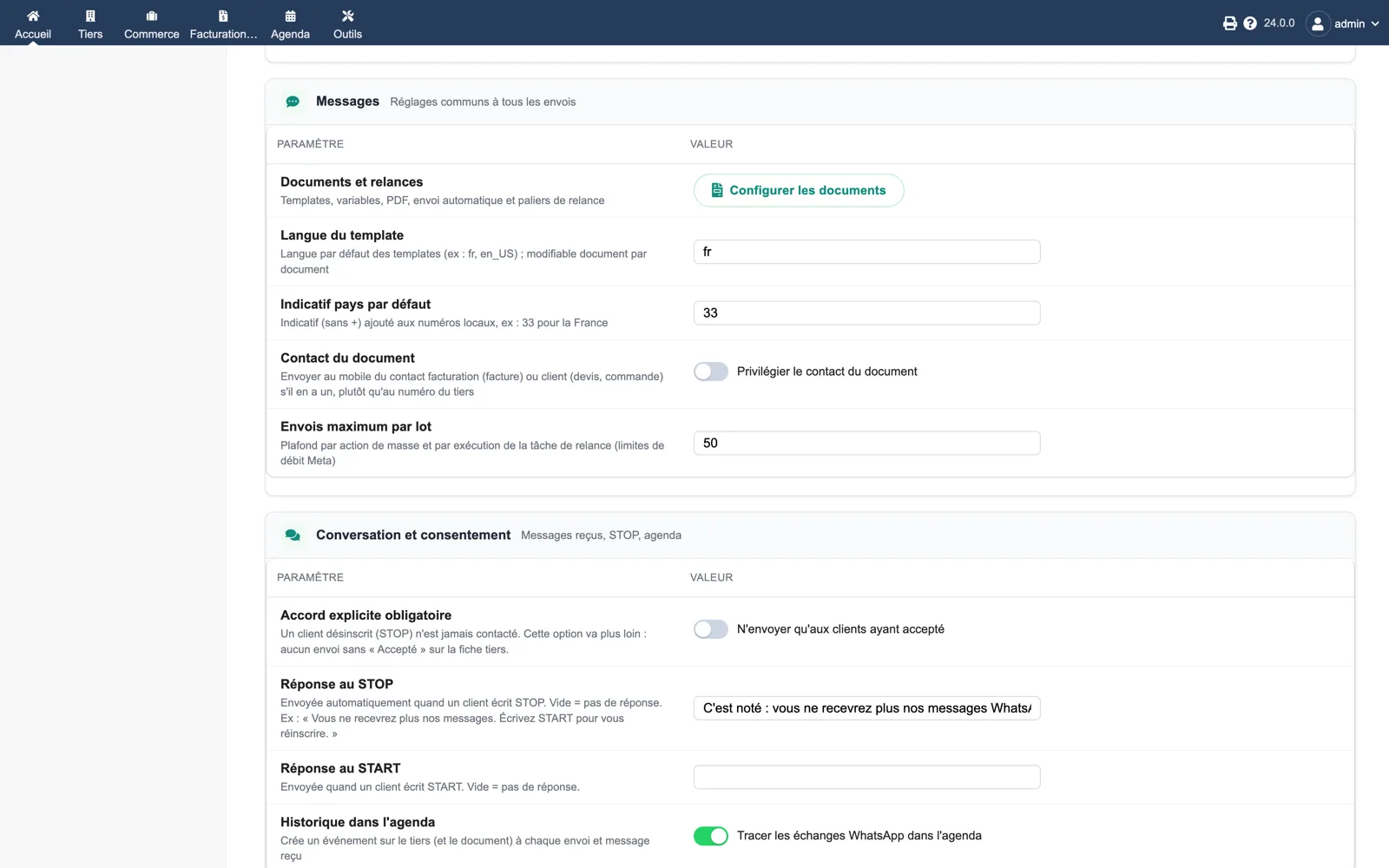
In the module setup, paste the access token, the phone number ID, the WhatsApp Business account ID and the app secret, then choose the default template language and country code. In the Meta app dashboard, declare the webhook URL shown on the diagnostic page with your verify token and subscribe to message events.
5. Configure the documents
Open the “Documents and reminders” tab. For each document type, enter the template name, its language and the body variables in order (customer, ref, amount, due_date…), tick “Attach the PDF” if the template has a Document header, and choose manual or automatic sending at validation. The Meta check on each card must show OK.
6. Send a first message
Open a validated invoice whose third party has a mobile number, click “Send on WhatsApp” and check the panel: sent, then delivered, then read as the webhook reports. Reply from the phone: the message must appear in the WhatsApp tab of the third party and in the inbox.
7. Enable reminders and consent
In “Documents and reminders”, fill in the reminder template and the steps, for instance -3,7,30, then enable the “WhatsApp reminders” scheduled task in Home → Setup → Scheduled jobs. In the setup, set the STOP and START replies and, if you want, require explicit consent before any sending.
8. Troubleshooting and update
The log shows the Meta error for each failed message (unknown number, template not approved…). The About page runs seventeen checks. To update, back up, replace the custom/whatsappnotify directory with the new version and reload a page: the module adds its columns, tab and scheduled task while keeping settings and permissions; new features stay off until you configure them.