Prerequisites, setup and acceptance checks. Start on a test database.
Updated 30 September 2026 · Odoo 16–20
1. Prerequisites
Use a test database on Odoo 16–20, hosted on Odoo.sh or your own server. Sales and Inventory (sale_stock) are required. Back up the database and filestore. Prepare at least two warehouses, delivery routes and real stock quantities. Identify other installed modules that change reservations, routes or sales confirmation.
2. Install the module
Download the archive for your exact Odoo major version. On a self-hosted test instance, place sale_multi_warehouse_fulfillment in the configured addons path, restart Odoo, update the Apps list in developer mode and install the module. On Odoo.sh, add it to a staging branch of your project and install it there. The module extends Sales and Inventory rather than adding a standalone application.
3. Set warehouse priorities
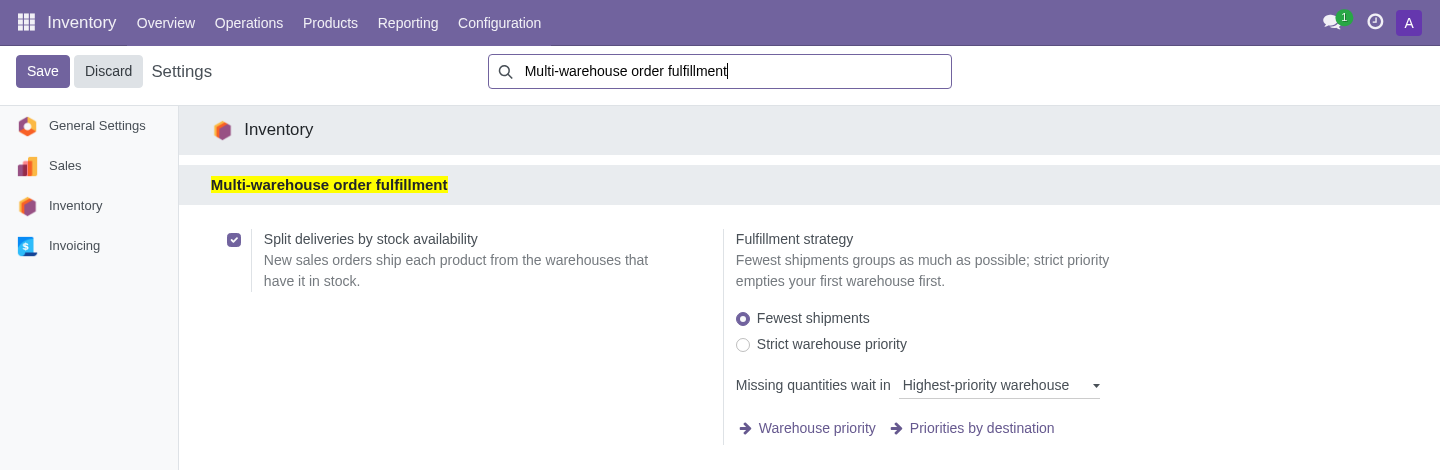
Enable multi-warehouse operation in Inventory settings and create the warehouses. In Inventory → Configuration → Warehouses, arrange the default priority and exclude warehouses that should not fulfill sales. Configure destination rules under Sales → Configuration → Warehouse priorities. A rule can put Madrid first for Spain and Portugal.
4. Choose a strategy
Choose fewest shipments to serve the whole order from one warehouse when possible, then each line from one warehouse, splitting only when needed. Choose strict priority to use your first eligible warehouse before the others. Set where missing quantities wait: the highest-priority warehouse for the destination or the order warehouse.
5. Validate a sample order
Create a storable product with 4 free units in Lyon and 10 in Madrid, then a quotation for 14 units without a forced line route. Use Preview warehouses: no stock is reserved. Confirm and inspect the Fulfillment tab and the separate deliveries. Check that delivered quantities and invoicing remain correct. Repeat with insufficient stock, existing reservations, destination priorities and your actual one-step or multi-step routes.
6. Troubleshooting and rollout
If a line keeps standard behavior, check whether it is a service, consumable, kit or has a forced route. If allocation differs from preview, check stock changes and reservations between preview and confirmation. Incoming stock is not anticipated. Verify eligibility, priorities and destination rules. Keep the module disabled on exceptional orders when needed and validate custom route interactions before production.