Discover the module screen by screen, with annotated Dolibarr screenshots and demonstration data. This is a guided presentation, not a live demo.
The “To ship” tab
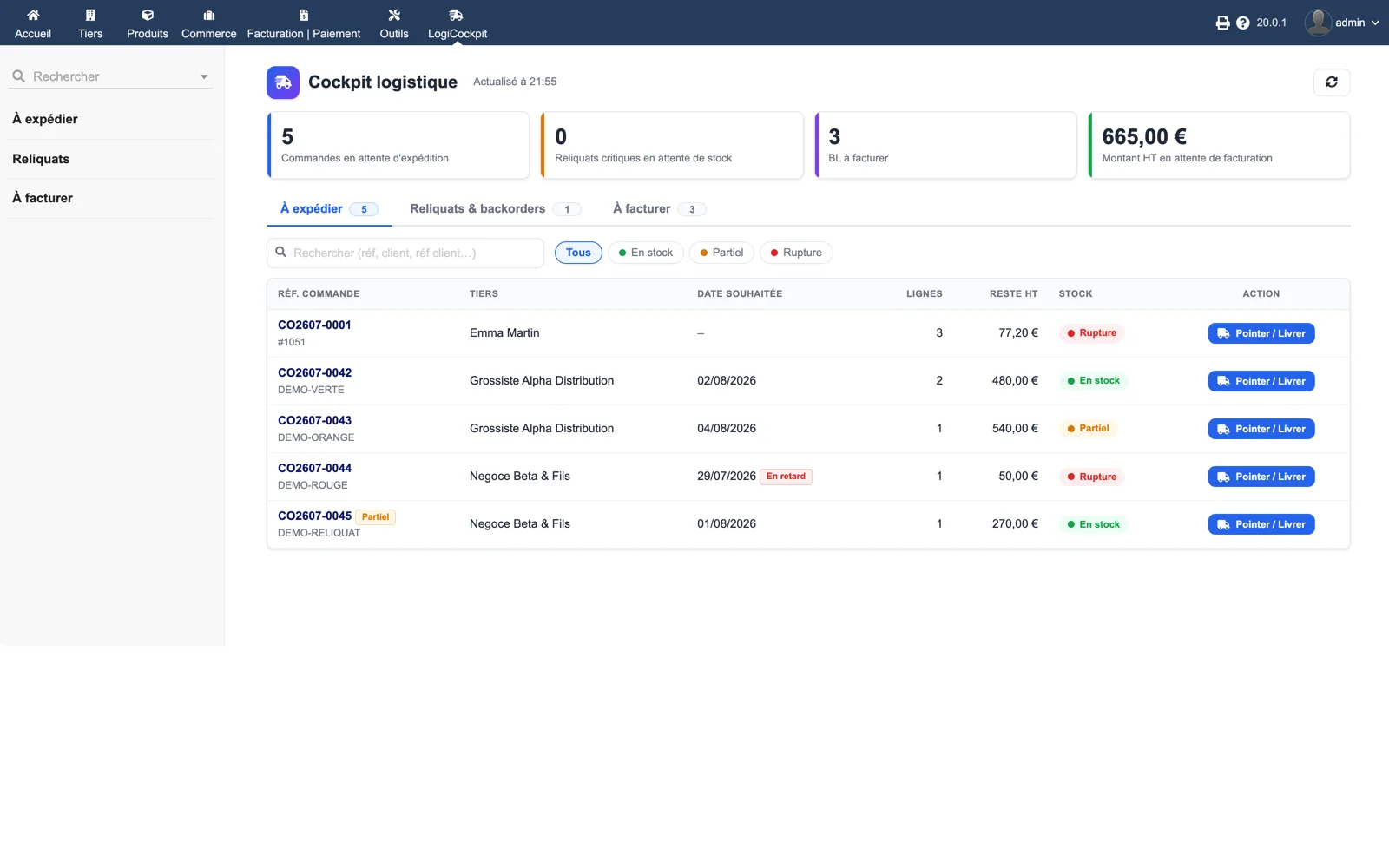
Four indicators at the top: orders awaiting shipment, critical backorders awaiting stock, delivery notes to invoice, amount excl. tax awaiting invoicing. Below, the orders with lines, remaining amount, a stock badge (in stock, partial, out of stock), a late flag and a “Pick / Ship” button.
Dolibarr · Demonstration data · Open the image to enlarge.
The quick-dispatch drawer
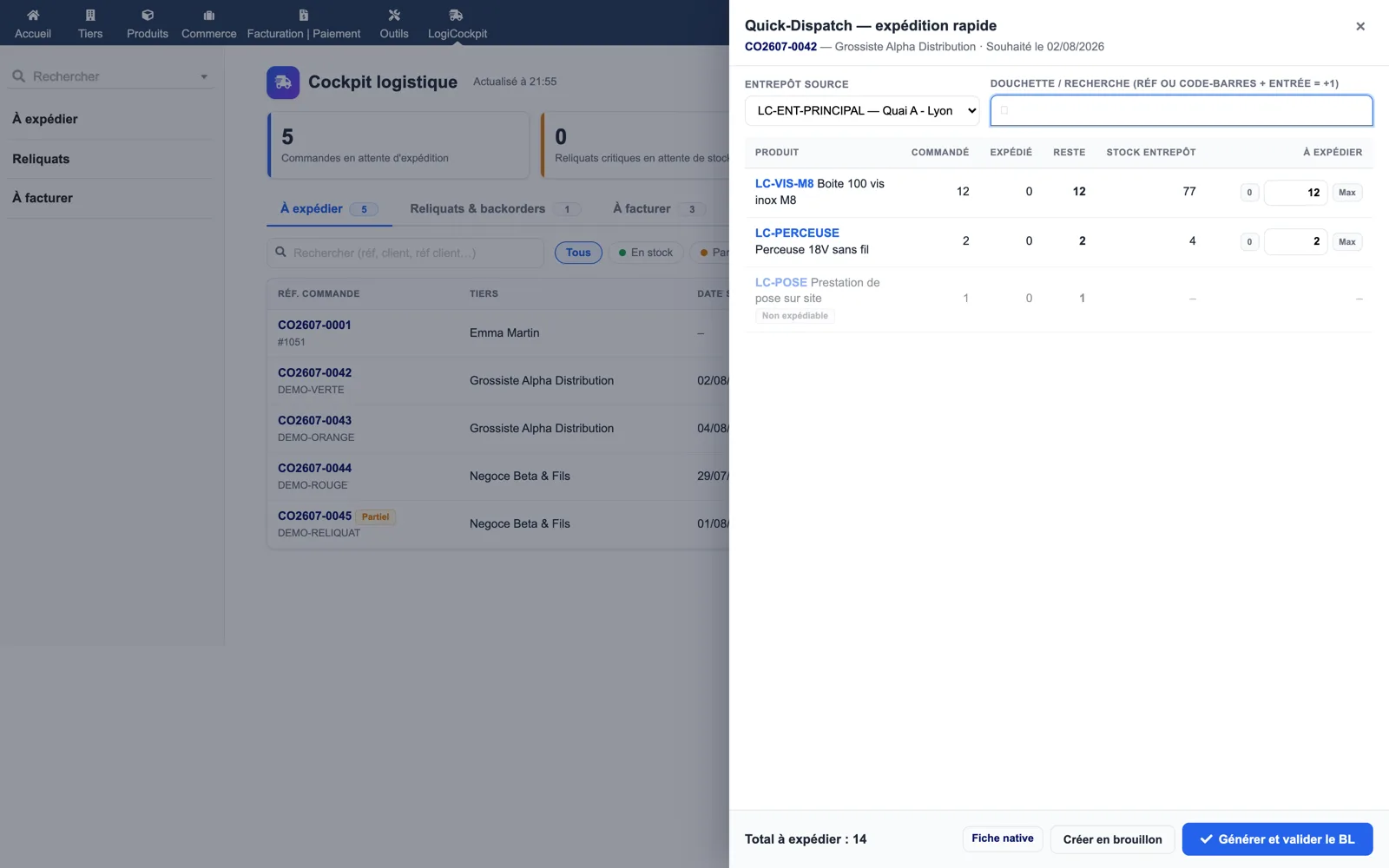
For one order: source warehouse, scanner field, then one line per product with ordered, shipped, remaining and warehouse stock, and the quantity to ship pre-filled at the maximum. A non-shippable service is greyed out. Three buttons: native card, create as draft, generate and validate the delivery note.
Dolibarr · Demonstration data · Open the image to enlarge.
The “Backorders” tab
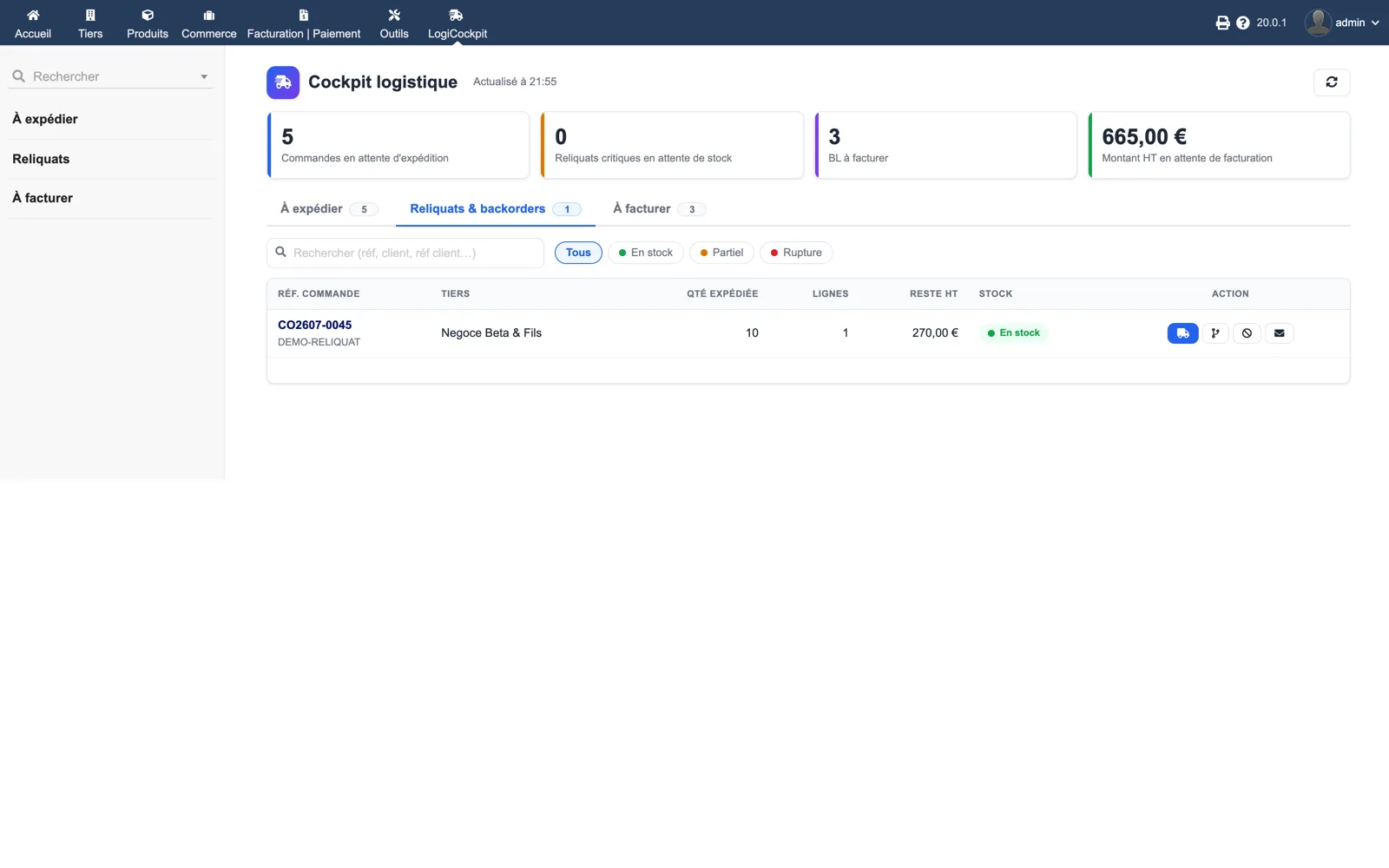
Partially delivered orders with shipped quantity, lines, remaining amount and a stock badge. Four actions per row: ship the backorder, create a backorder sub-order, close the remainder, customer alert e-mail.
Dolibarr · Demonstration data · Open the image to enlarge.
The “To invoice” tab
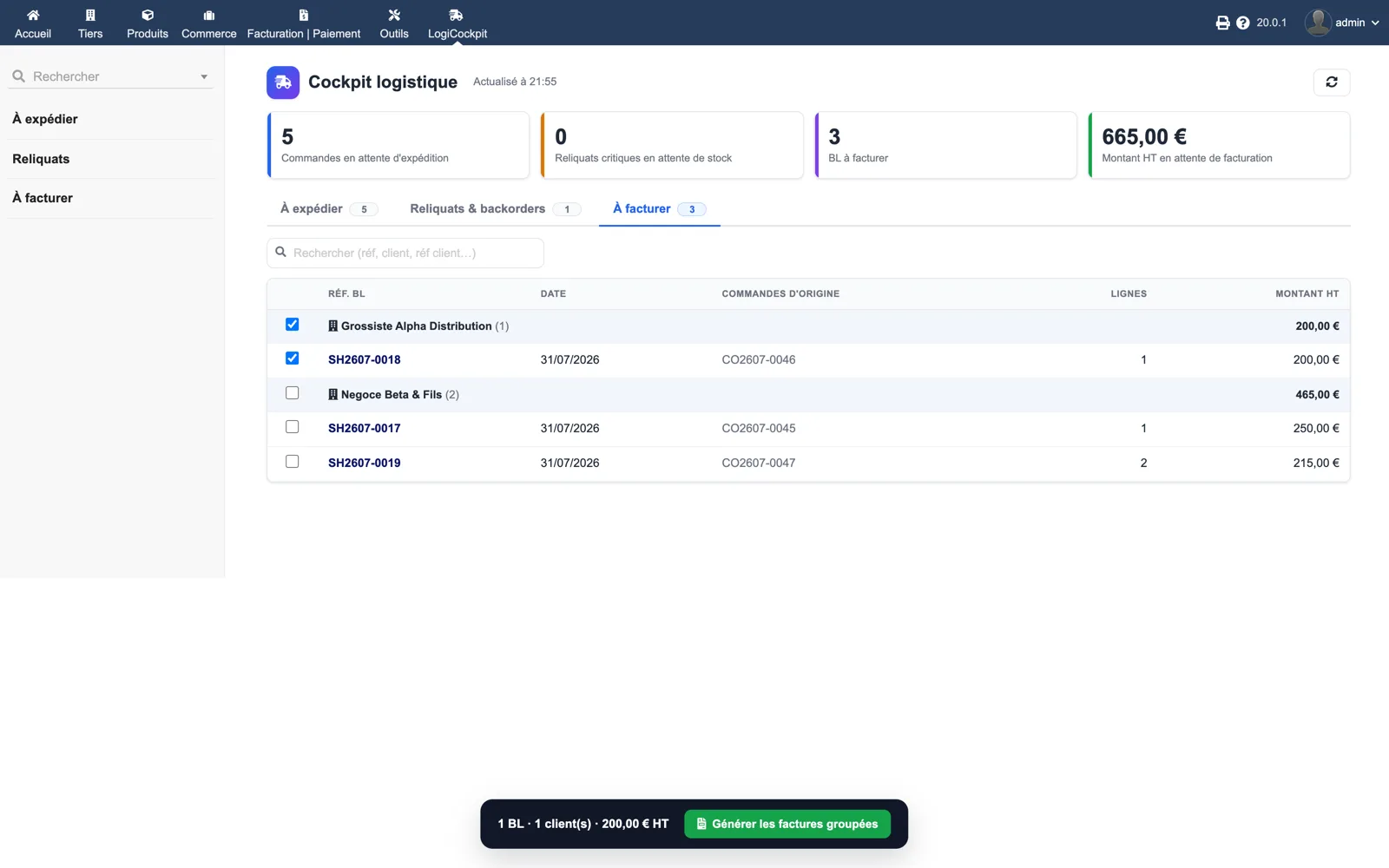
Validated, unbilled delivery notes grouped by customer with subtotals and source orders. Tick notes or a whole customer: the floating bar counts notes, customers and the amount, and offers “Generate batch invoices”.
Dolibarr · Demonstration data · Open the image to enlarge.