Generate the PDF and queue the job
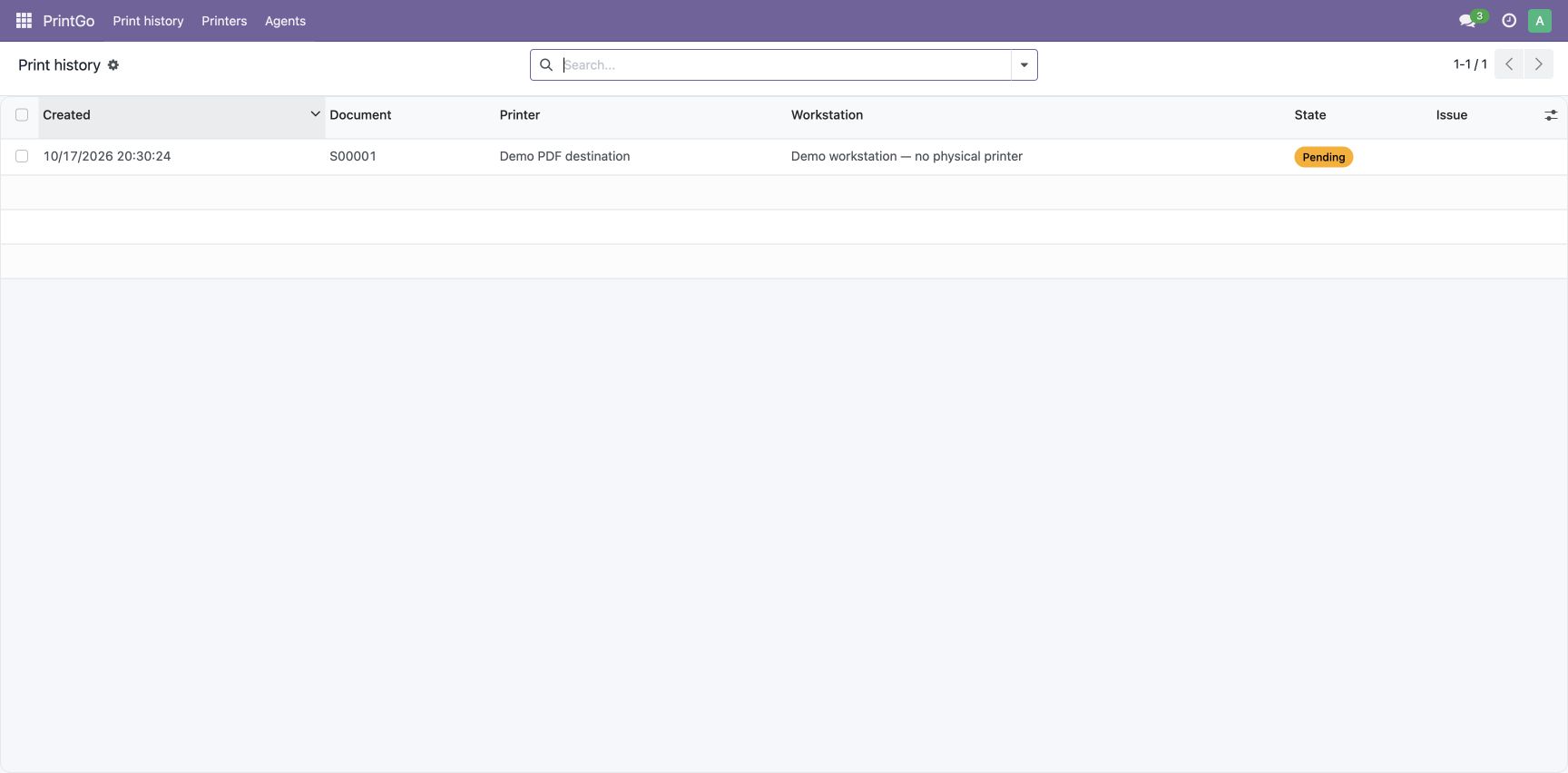
The PrintGo action on sales order S00001 generates a real Odoo PDF and creates a Pending job for the configured demonstration destination.
 PrintGo
Explore the module through annotated Odoo screenshots with demonstration data. This is a guided presentation, not a live demo.
A sequence of real Odoo 17 screenshots with fictional data. English and French captions; no audio. You can also read the steps below. PDF receipt verified; no physical printing.
The PrintGo action on sales order S00001 generates a real Odoo PDF and creates a Pending job for the configured demonstration destination.
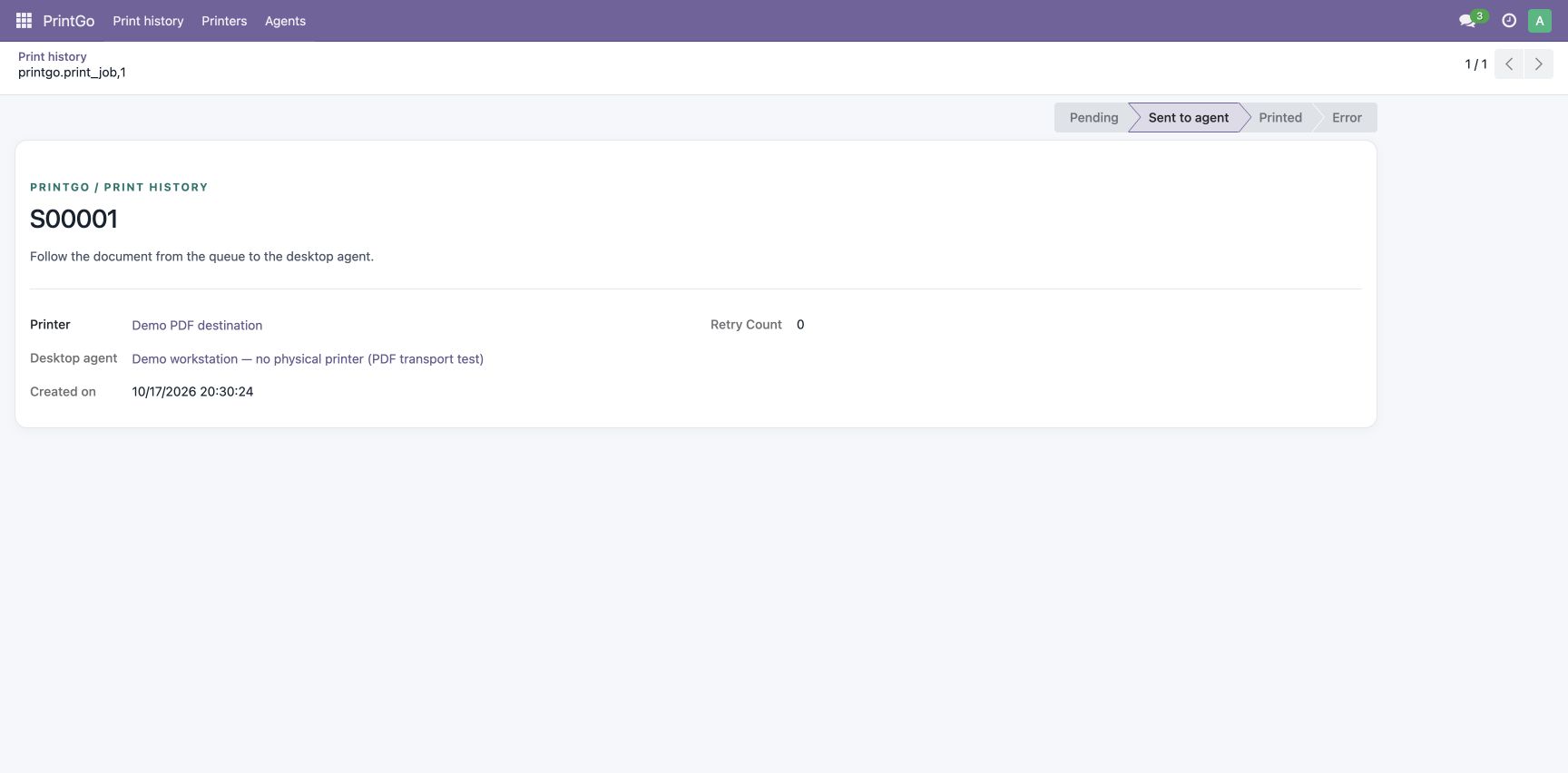
The supplied PrintGo HTTP client pairs with Odoo and retrieves the PDF through the real polling API. Odoo changes the job to Sent to agent. No operating-system printer command is run.
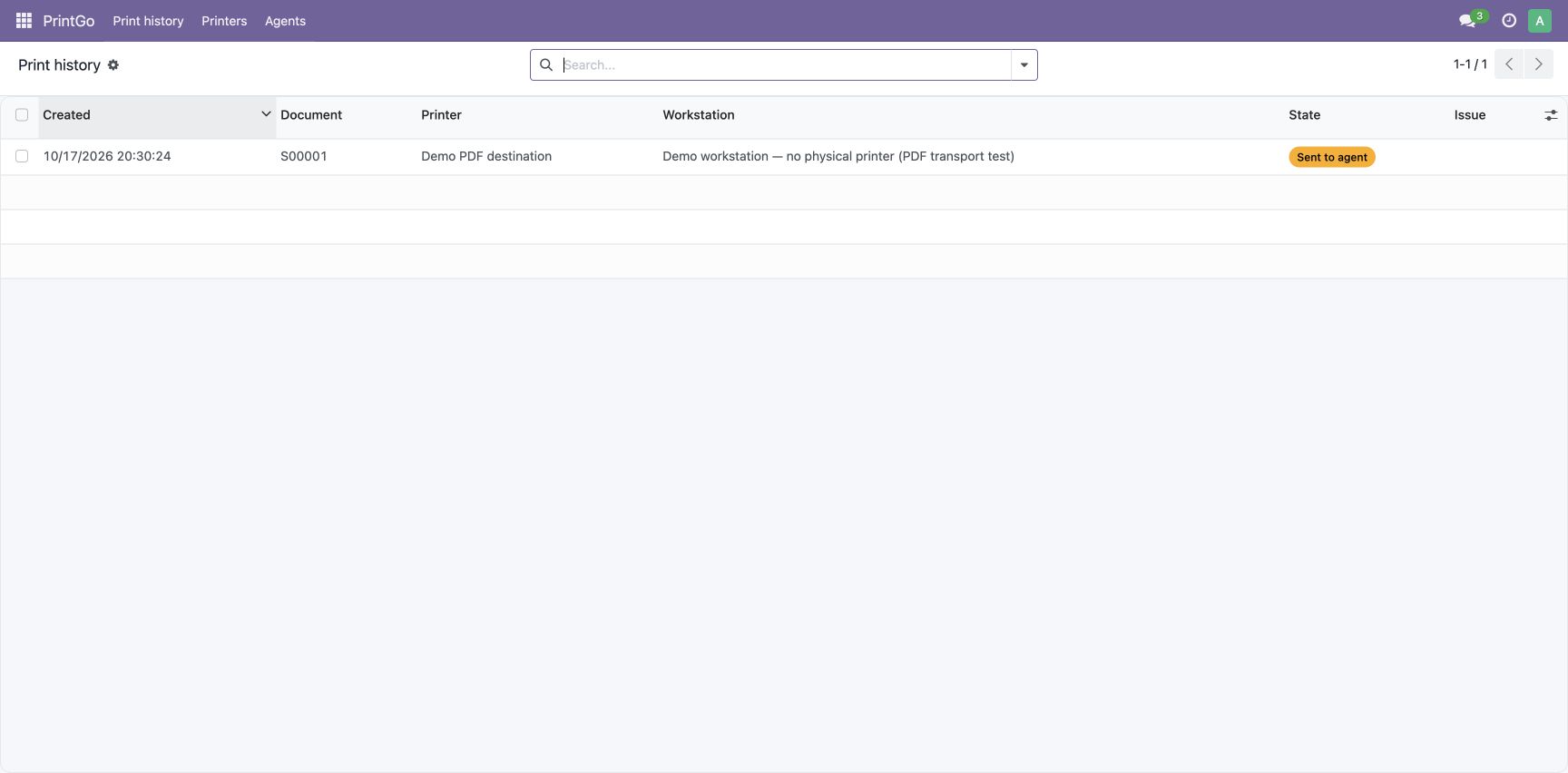
The job detail confirms Sent to agent. The received PDF is linked above the step-by-step walkthrough. No successful print acknowledgement was sent: physical paper output is not tested in this demonstration.